

The event is from 3 pm to 8 pm with presentations at 4. Come and go as you are able. Please register by end-of-day Monday 11/22.
Registration is required. Click the image to learn more and register.

We’ve been a proud Microsoft partner for years, helping hundreds of businesses embrace the power of Microsoft 365. Whether you’re starting fresh and looking for a seamless migration or striving to go further by improving productivity and security, we’re here to guide you on your journey.
This page is packed with helpful information, but no single place can cover everything Microsoft 365 offers. Use it as a resource you can return to anytime. Start with the basics, explore the advanced information when you’re ready, and reach out if you want expert guidance. If you have questions or want to learn how these tools fit your business, contact us. We’re ready to help you take the next step!
Familiar Productivity

Seamless Collaboration

Sophisticated Security
The Tools You Rely On and More

Familiar Apps
Microsoft 365 includes all the apps your team relies on every day—Word, Excel, PowerPoint, and Outlook —available in both desktop and web versions. With your subscription, you have rights to the most up-to-date versions, ensuring:
- Full feature set across devices; so, you never miss out on new capabilities.
- Security enhancements that keep your data and workflows protected.
- Flexibility to work anywhere: Start on your PC or Mac, continue in a browser, and finish on a mobile device.
- Real-time collaboration: Co-author documents, track changes, and keep everyone aligned without sending endless attachments.
- Consistency and compatibility: Files open and look the same across platforms.
- Click to learn more about Word, Excel, PowerPoint.

Business-Class Email with Outlook
Email is essential for every business and Microsoft 365 delivers a secure, reliable experience that works wherever you do.
- Familiar experience everywhere
Access your email through the Outlook desktop app on Windows or Mac, the mobile app for iOS and Android, or Outlook on the web, which offers a consistent interface similar to the desktop version. - Generous mailbox storage
Each user gets 50 GB of mailbox storage for email and calendar items.
Need more space? Archiving options and auto-expanding archive mailboxes are available for long-term retention and compliance. - Email-only licensing
For users who only need email (and not the full suite of Office apps or cloud storage). - Built-in security and compliance
Advanced protection against spam, phishing, and malware is included. Add Microsoft Purview Message Encryption for secure communication—even with external recipients. - Integrated calendar and contacts
Schedule meetings, share calendars, and manage contacts seamlessly across devices. - Click to learn more about Outlook.
Beyond the Basics: Powerful Apps You Might Not Know About
Microsoft 365 Business Premium includes more than Word, Excel, and PowerPoint. These additional tools help you organize, collaborate, and create in ways that go beyond traditional documents:

Microsoft Teams
Your central hub for communication and teamwork. Chat with colleagues, host video meetings, share files, and collaborate in real time – all in one app. Teams integrates with Outlook and Office apps, so scheduling and document collaboration happen seamlessly. Click to learn more about Teams.

OneNote
Think of it as your digital notebook. Capture meeting notes, ideas, and project details in a way that’s organized and searchable. You can embed images, files, and even audio recordings, and share notebooks with your team for collaborative brainstorming. Click to learn more about OneNote.

Whiteboard
A virtual whiteboard designed for visual collaboration. Use it to draw, add sticky notes, and work through ideas with your team, whether you’re in the same room or across the globe. It’s well-suited for planning, creative workshops, and interactive process mapping. Click to learn more about Whiteboard.

Bookings
An online scheduling tool that eliminates back-and-forth emails. Customers can book appointments through a web page that syncs with your Outlook calendar, and you can manage staff availability and confirmations effortlessly. Click to learn more about Bookings.

Loop
A new way to co-create content. Loop components such as tables, lists, and tasks stay in sync across Teams, Outlook, OneNote, and more, so updates appear everywhere right away. A single component can live in multiple places, whether it is in an email, a Teams chat, or OneNote, and any edit made from anywhere updates every instance automatically, even in a message that was sent earlier. It is ideal for projects that need constant collaboration, and it lets everyone work from the location that suits them best without dealing with endless edited versions. Click to learn more about Loop.

Forms
Quickly create surveys, quizzes, and polls to gather feedback or data. Responses are automatically compiled and can be exported to Excel for deeper analysis, making it ideal for internal feedback or customer insights. Click to learn more about Forms.

Clipchamp
Create and edit professional-quality videos right from your browser. Perfect for marketing, training, or social media content, with easy-to-use templates and tools that don’t require advanced video editing skills. Click to learn more about Clipchamp.
Publisher (PC only)
Design brochures, flyers, and other marketing materials with ease. Publisher offers advanced layout tools for polished print and digital content, and it is available on Windows devices for businesses that need professional-looking collateral. Click to learn more about Publisher.

Access (PC only)
Build and manage databases to organize business information. Perfect for creating custom apps or tracking data beyond spreadsheets, and available on Windows devices for businesses that need structured data solutions. Click to learn more about Access.
More Power. More Automation. More Insights
Microsoft 365 isn’t just about documents and email; it’s about saving time and reducing manual work. With tools from Microsoft, you can streamline everyday tasks without writing a single line of code.

Power Automate
Automate repetitive tasks like moving email attachments to OneDrive, sending approval requests, or posting updates in Teams. Start with hundreds of pre-built templates or create your own flows. Business Premium includes automation using standard connectors (Outlook, SharePoint, Teams), so you can get started right away. Click to learn more about Power Automate.

Power Apps
Build simple apps to solve business problems, such as tracking inventory or managing requests, without hiring a developer. Apps can run on desktop or mobile and integrate with the Microsoft 365 services you already use. Click to learn more about Power Apps.

Power BI
Turn raw data into insights with interactive dashboards and reports. Analyze trends, monitor KPIs, and make informed decisions, all from within Microsoft 365. Click to learn more about Power BI.
Cloud Storage That Works Like You Do
Microsoft 365 gives you two powerful storage solutions, each designed for different needs but working seamlessly together.

OneDrive for Business
- Personal cloud storage for each user with 1 TB of space.
- Perfect for individual work files that need to be accessible anywhere—desktop, web, or mobile.
- Share securely with colleagues or external contacts using permission-based links.
- Click to learn more about OneDrive.

SharePoint
- Organization-wide storage for teams, projects, and company resources.
- Organization-Wide storage starts at 1 TB plus an additional 10 GB per licensed user, giving plenty of room for shared content.
- Offers granular permissions: control access at the site, folder, or file level, just like you would on a traditional network drive.
- Build specialized team sites for departments or projects, or keep it simple with shared folders.
- Access through a browser or File Explorer integration, so navigation feels familiar.
- Click to learn more about SharePoint.

Advantages for Both:
- Familiar navigation: Access files in Windows File Explorer just like you would on a local drive—no learning curve.
- Always current versions, whether synced locally or accessed online.
- Effortless sharing: Share files or folders with people inside and outside your organization using secure links and permissions.
- Secure file requests: Need documents from others outside of your organization? Use the Request Files function to let them upload sensitive or large documents directly to your cloud storage in a secure and easy way.
Seamless Collaboration: Work Together Without Barriers
Collaboration is no longer about passing files back and forth or wondering who has the latest version. With Microsoft 365, your team can work together in real time, securely, and from anywhere, without sacrificing the familiar experience you’re used to.
Access Files Anywhere
Your documents, spreadsheets, and presentations live in the cloud, so they are available wherever you are, whether on your workstation, laptop, tablet, or phone. Whether you are in the office, at home, or traveling, you can open, edit, and share files without relying on VPNs or local servers. This keeps your team productive even when working remotely or across multiple locations.
Real-Time Co-Authoring
Multiple people can work on the same document at the same time, eliminating confusing file names like “final_v3_revised_FINAL.” Changes appear instantly, and version history ensures you can always roll back if needed. This works across Word, Excel, PowerPoint, and OneNote, allowing teams to collaborate without waiting for someone to finish their turn.
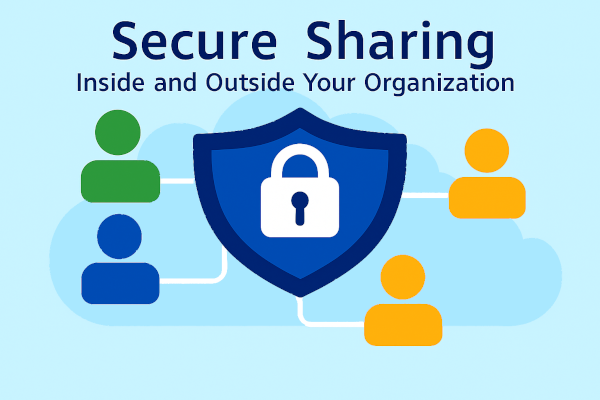
Secure Sharing Inside and Outside Your Organization
Need to share a file with a colleague or a vendor outside your company? Microsoft 365 makes it simple and secure. You can:
-
Send links instead of attachments to avoid version confusion
-
Set expiration dates for shared links so they do not linger forever
-
Require sign-in or one-time passcodes for external users
-
Control whether recipients can edit or just view the file
These options give you flexibility without compromising security.
Request Files from External Users
Collect documents from clients, vendors, or applicants without exposing other content. The Request Files feature lets you create a secure upload link to a specific folder in OneDrive or SharePoint. This is perfect for HR teams collecting resumes, finance departments requesting invoices, or any scenario where you need files from outside your organization.
Work How You Are Used To
Even though files are stored in the cloud, you can still navigate them in Windows File Explorer just like you would on a local drive. Sync folders to your device for offline access, and changes update automatically when you reconnect. This allows your team to keep using familiar tools without learning a new way of working.
Advanced Collaboration with SharePoint
For teams that need more structure, SharePoint offers customizable sites for projects, departments, or company-wide resources. You can set granular permissions like traditional network drives while adding modern features such as document libraries, workflows, and metadata. SharePoint is ideal for businesses that want organized, secure collaboration at scale.
Integrated Communication with Teams
Collaboration is not just about files. With Microsoft Teams, chat and video meetings are built right into the workflow. Share a document in a chat, co-edit during a meeting, and keep everything connected without switching apps. This integration ensures conversations and content stay together, reducing confusion and speeding up decisions.
Quick Tips for Better Collaboration
- Use expiration dates on shared links
When sharing files externally, set an expiration date so the link automatically stops working after a certain time. This reduces the risk of old links being forwarded or accessed later by unintended parties. - Require sign-in or one-time passcodes for external sharing
Instead of sending open links, require recipients to sign in or use a one-time passcode. This ensures only the intended person can access the file even if the link is shared elsewhere. - Organize shared content with SharePoint sites
For projects or departments, create a dedicated SharePoint site. This keeps documents, tasks, and resources in one place and allows you to set granular permissions like a traditional network drive while taking advantage of modern collaboration features. - Pin synced folders in File Explorer
Sync important OneDrive or SharePoint folders to your device and pin them in File Explorer. This gives you quick access to cloud files in the same way you navigate local drives, making the transition seamless for everyday users. - Leverage version history for peace of mind
If a document becomes messy during collaboration, you can restore a previous version in seconds. This feature is built into Word, Excel, and PowerPoint so you never have to worry about losing work. - Use Request Files for secure uploads
Instead of asking vendors or clients to email large or sensitive files, send them a secure upload link to a designated folder. They can upload without seeing other content, keeping your data safe and organized. - Collaborate in context with Teams
Share files in a Teams chat or meeting so everyone sees the latest version and can co-edit in real time. This eliminates confusion and keeps conversations tied to the documents that matter.
Step Up Your Security with Microsoft 365
Every business, large or small, faces security challenges. Cyber threats do not care about your size, and even a single compromised account can lead to costly downtime or data loss. Microsoft 365 Business Premium gives you enterprise-grade protection without the complexity so you can focus on running your business with confidence.
Identity Protection with Microsoft
Your users’ identities are the keys to your business. Business Premium adds advanced controls to keep those keys safe:
- Multi-Factor Authentication (MFA)
MFA is included and should be enabled for all accounts. It adds a critical layer of defense against phishing and password theft, significantly reducing the risk of compromise.
- Conditional Access
Go beyond basic MFA enforcement. Conditional Access lets you create rules that block risky sign-ins and enforce security based on context. For example:-
Require MFA for every user at all times
-
Block access from legacy authentication protocols that attackers exploit
-
Allow access only from compliant or managed devices
-
Restrict access by location or app sensitivity
These policies make it much harder for attackers to use stolen credentials. - Click to learn more about Conditional Access.
-

Device Security with Microsoft Intune
Your data is only as secure as the devices that access it. Business Premium includes Microsoft Intune, giving you control over company devices and apps:
- Device Compliance Policies
Ensure only secure, managed devices can access company resources. If a device falls out of compliance, access is automatically blocked until it is fixed. - Remote Wipe
Lost laptop or phone? Wipe company data remotely without affecting personal files. This protects sensitive information even if the device is gone. - App Management
Deploy and update business apps across Windows, macOS, iOS, and Android without manual installs. This keeps devices consistent and reduces risk from outdated software.
Data Protection with Microsoft Purview
Your business runs on information. Keep it safe with built-in tools:
- Sensitivity Labels
Classify and protect documents and emails such as Confidential or HR-Only. Labels can enforce encryption and restrict sharing so sensitive content stays under control. - Data Loss Prevention (DLP)
Detect and prevent sensitive information such as credit card numbers or Social Security numbers from leaving via email or cloud storage. Policies can block risky actions or alert admins before data escapes. - Message Encryption
Send encrypted emails to anyone, including external recipients, with simple click-to-open access. This ensures confidential communication without complicated steps.
Advanced Threat Protection for Email
Email is the number one attack vector, and Business Premium includes enterprise-grade protection:
- Safe Links
Every link in an email is scanned and rewritten so that when a user clicks, it is checked in real time. If the destination is malicious, access is blocked even if attackers change the link after delivery. This protects against phishing and time-delayed attacks across email, Teams, and Office apps. - Safe Attachments
Attachments are opened in a secure Microsoft sandbox before they reach the inbox. If they behave like malware, they are blocked automatically.
Ready to Take the Next Step?
Microsoft 365 offers endless possibilities, but you don’t have to figure it out alone. Whether you’re moving from another email system or want to strengthen security, we’re here to make it simple.
- Seamless Migration
We handle planning, cutover, and onboarding with near-zero downtime. All your email, calendars, and contacts come with you—securely and completely. - Security Review & Recommendations
Already on Microsoft 365? We’ll review your setup and provide actionable steps to improve protection, compliance, and productivity.
No matter where you are in your Microsoft 365 journey, we can help you go further.
Frequently Asked Questions
Q: Do we need MFA?
A: Yes. Multi-factor authentication (MFA) is one of the most effective ways to protect your accounts from compromise. Passwords alone are vulnerable to phishing, credential theft, and brute-force attacks. MFA adds a second layer of verification, making it dramatically harder for attackers to gain access even if they steal a password. With Microsoft 365 Business Premium, you go beyond basic MFA by using Conditional Access to enforce MFA everywhere, block legacy authentication protocols, and ensure only compliant devices can connect. These advanced controls help keep your credentials safe from malicious logins.
Q: Can we keep all our old email when migrating?
A: Yes. We migrate mailboxes, archives, aliases, and distribution lists so nothing is lost. Your team will have access to all historical email and calendar data in Microsoft 365, ensuring a smooth transition without disruption.
Q: Can I use my own domain for email, and what if I don’t have one yet?
A: Yes. With Microsoft 365, you can use your existing email address and domain so your team keeps the same professional identity. If you already own a domain, we’ll help you connect it to Microsoft 365 so your email works seamlessly. If you don’t have a domain yet, we can assist you in purchasing and setting one up. This ensures your business email looks professional and is fully integrated with Microsoft 365 services.
Q: Is Microsoft Copilot included?
A: Copilot is available as an add-on for Business Basic, Standard, and Premium plans. We’ll help you prepare your environment and ensure your data is secure before enabling AI-powered productivity.
Q: Why should our business use Sonit for setup, review, or migration?
A: Setting up Microsoft 365 or migrating from another system isn’t something most businesses do often. Internal staff may only see one environment and one set of challenges. At Sonit, we do this several times a year for a wide range of customers, each with unique requirements and concerns. That experience gives us deeper knowledge and broader perspective than someone trying to do it themselves. We know the pitfalls to avoid, the best practices to follow, and how to tailor Microsoft 365 to your business goals, saving you time, reducing risk, and ensuring a smooth, secure transition.
Q: Can Microsoft 365 help with compliance requirements?
A: Yes. Business Premium includes tools like Sensitivity Labels and Data Loss Prevention (DLP) to help protect sensitive data. For businesses in regulated industries, Microsoft Purview offers advanced compliance features such as retention policies, eDiscovery, and audit logging. These capabilities help you meet legal and industry requirements while keeping data secure.
Q: We already have Microsoft 365 through another provider. Can you still help us?
A: Absolutely. Even if your subscription is with someone else, we can help you review your current setup, manage and secure your environment, and recommend improvements to get the most out of Microsoft 365. We can also assist with renewals and ensure you are on the right plan for your needs. Our experience across hundreds of environments means we know what works and what does not, so you get expert guidance without starting from scratch.